
Change the metric and time range
Every number on This Morning has a Trend View behind it. From there you can jump to any other metric and step back through your history.
Steps
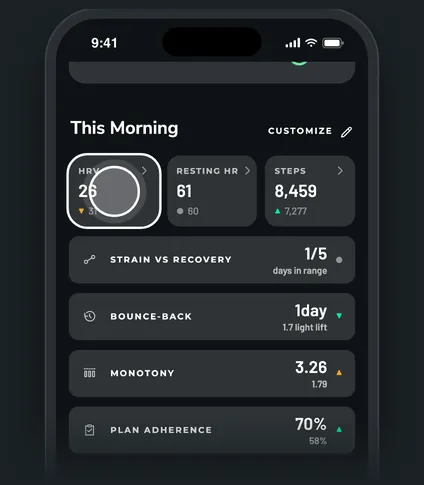
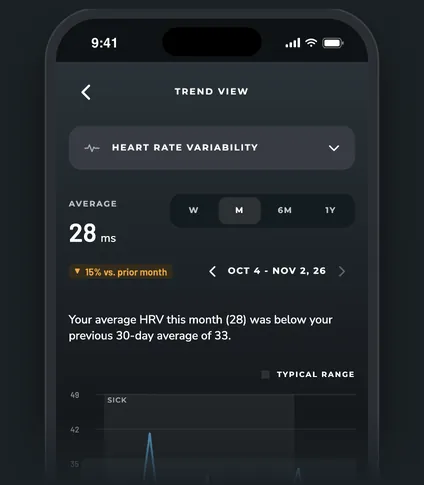
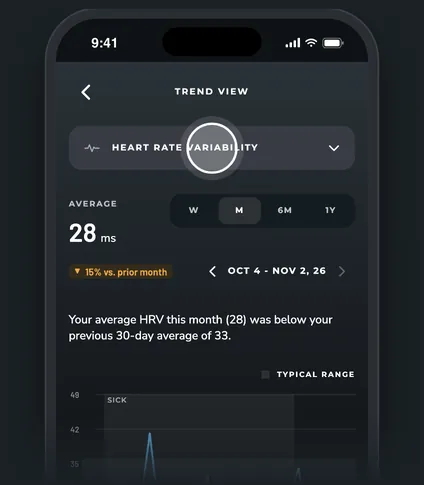
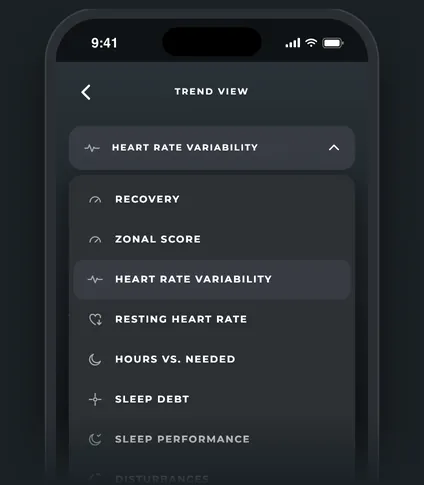
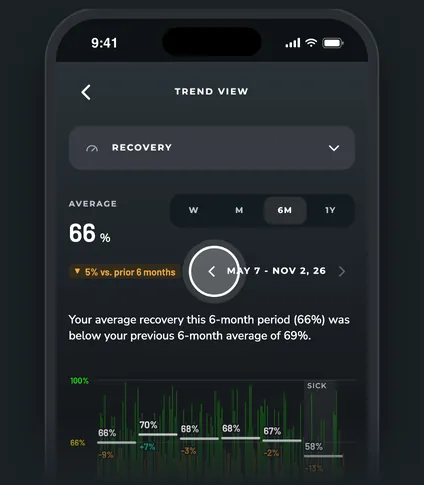
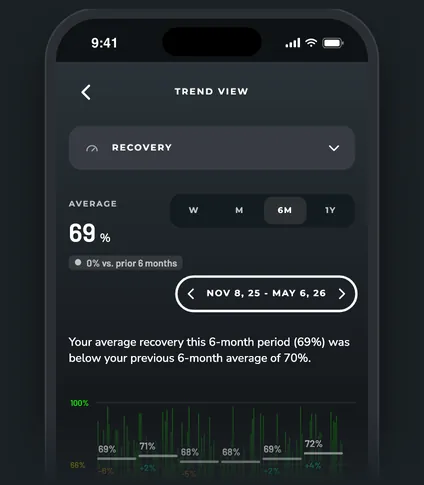
Open a Trend View
On the Today tab, tap any row or tile in This Morning, like HRV or Resting HR. You can also tap the Load box at the top of Today, or the Weekly hours by session chart on Training.
Switch the metric
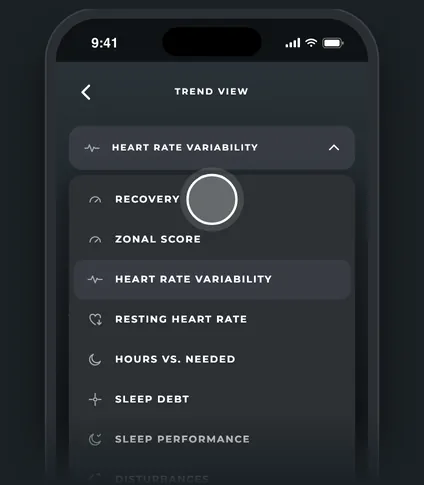
Tap the metric name at the top of the Trend View. A list opens with every metric, from Recovery and ZONAL Score to Sleep debt, Strain vs Recovery, Training hours and Training load. Pick one and the view changes in place.
Pick a time range
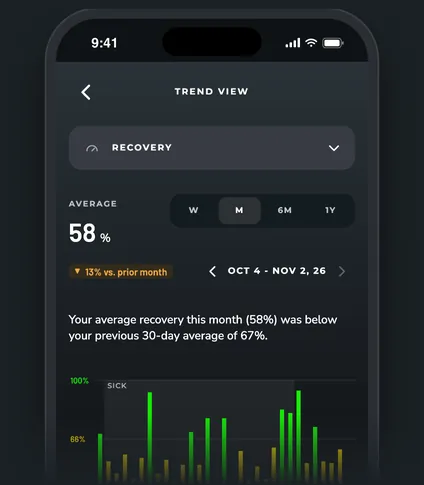
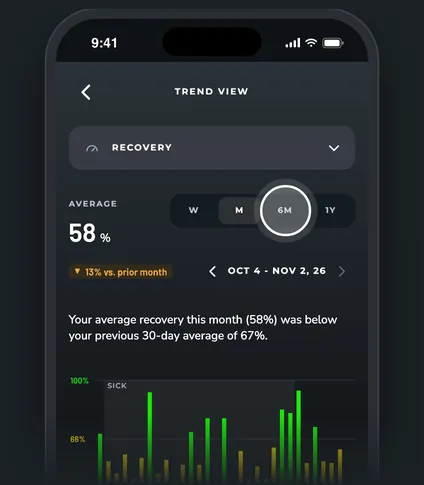
Use the buttons under the average:
| Button | Covers |
|---|---|
| W | The last 7 days |
| M | The last 30 days |
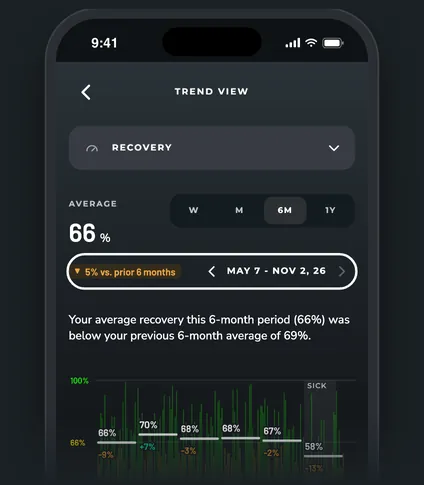
| 6M | The last 180 days, in 30-day blocks |
| 1Y | The last 360 days, in 30-day blocks |
The chip next to it compares this period with the one before it. Use the arrows beside the dates to step back one period at a time, and forward again. Strain vs Recovery only offers W and M.
What else is on the page
- A one-line summary of the period against the period before.
- A breakdown for metrics that have one, like days in each recovery color.
- For many metrics, a short "What is" note that explains it.
Today's unfinished day is left out of the average where it would skew it, and the page tells you when it does.
Trends tab ranges
The Are you getting better? card on the Trends tab has its own range buttons: 7D, 14D, 1M, 3M, 6M, Since (your program start month), 1Y and All. It opens on 3M and shows recovery, HRV and resting heart rate for the range you pick.
Questions
How do I get back to where I was?
Tap the back arrow at the top left. It returns to the screen you opened the Trend View from.
Why is the forward arrow grey?
You're already on the latest period. It turns on once you've stepped back.
Why can't I go back further?
The back arrow stops at the start of your WHOOP history in ZONAL.