
Plan a trip ahead
You don't have to wait for your WHOOP to notice a new time zone. Plan the trip ahead with your dates, and the plan starts on its own the day you leave.
Steps


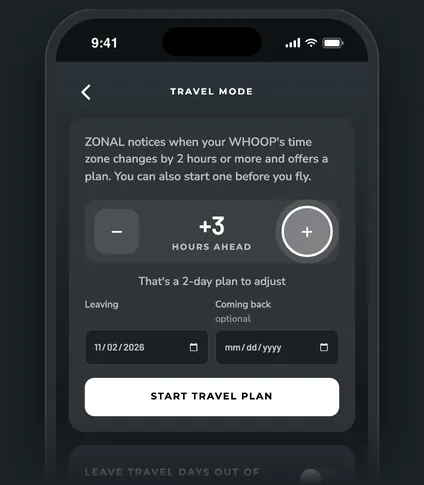
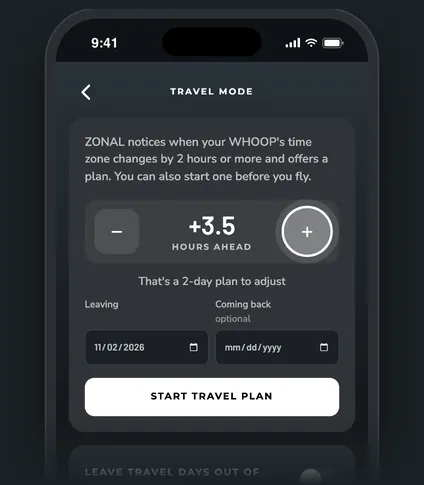
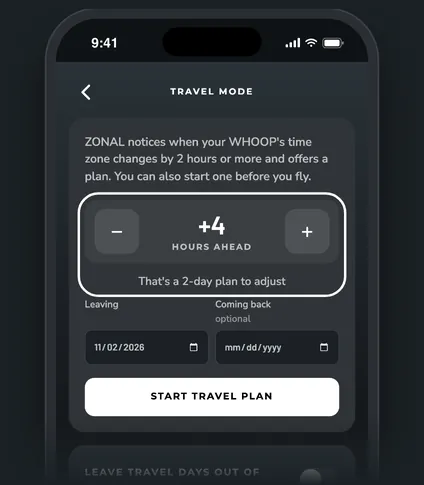
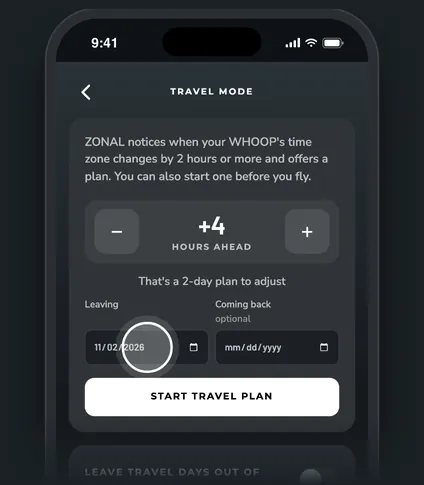
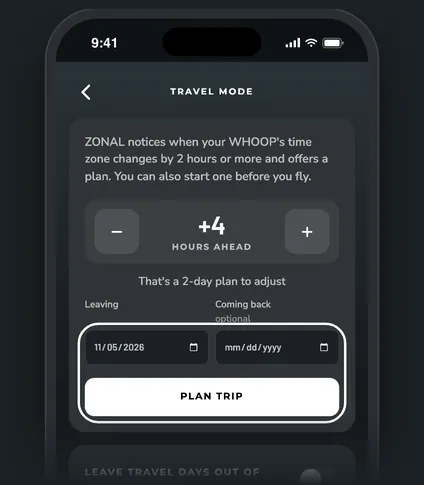
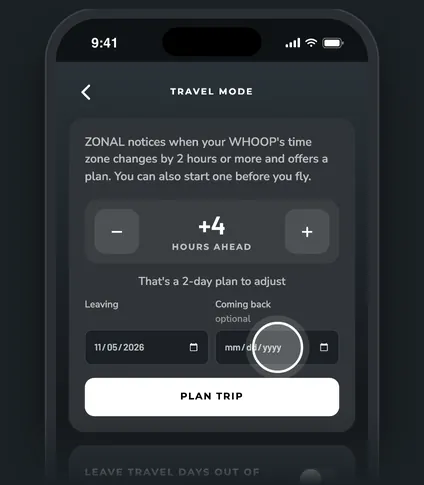
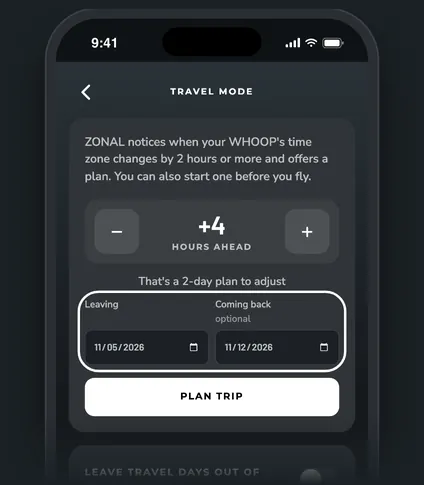
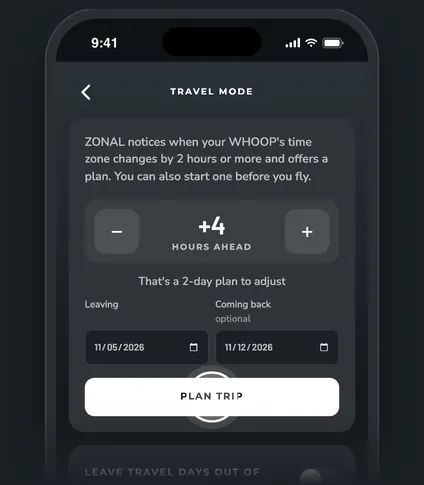
What you set
- Hours ahead or behind. Use - and + to move in half hours, from 12 behind to 14 ahead. ZONAL shows the plan length right under it, like "That's a 2-day plan to adjust".
- Leaving. The day you fly. It can be today or later, not in the past.
- Coming back (optional). The day you fly home. It has to be after Leaving. Travel mode ends after this day, and the flight home still counts as a travel day.
When Leaving is today, the button reads Start travel plan. Pick a later date and it changes to Plan trip.
Before you leave
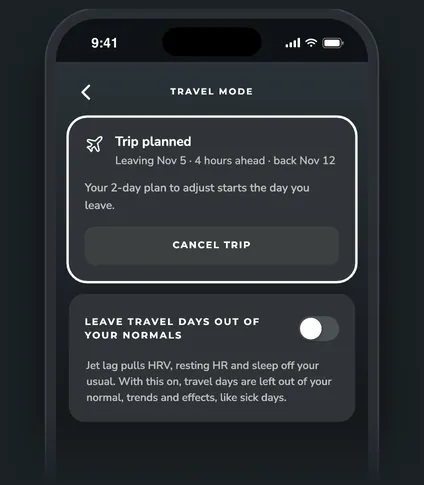
The Travel mode page shows Trip planned with your leaving date and time change. Today shows nothing yet. On the day you leave, the plan starts and Today shows where you are in it.
Good to know. You can add or change Coming back while the trip is on. Open Travel mode and set the date under the plan.
The button is grayed out? A short line under the dates says why: pick the day you leave, Leaving can't be in the past, or Coming back has to be after Leaving.
Questions
How do I cancel a planned trip?
Open Travel mode from the + button and tap Cancel trip. A toast lets you undo it.
What if I don't know when I'm coming back?
Leave Coming back blank. Tap I'm home on the Travel mode page when you're back, or on the Welcome back card that shows up once your WHOOP is on your home time again.
How long is the plan?
About one day per two hours of time change, from 1 to 4 days. See Use travel mode for the daily tips.