
Add ZONAL to your Home Screen
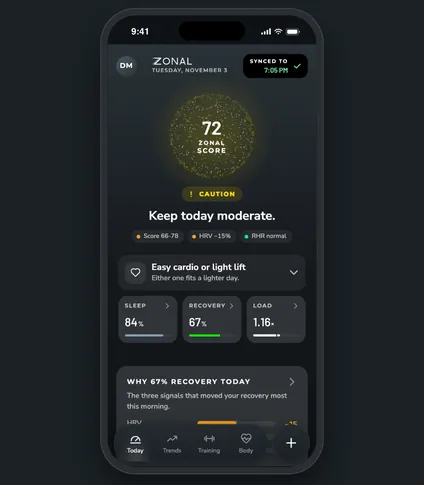
ZONAL runs in your browser, but it works best from your Home Screen. Add it once and it opens full screen with its own icon, like any other app.
Steps
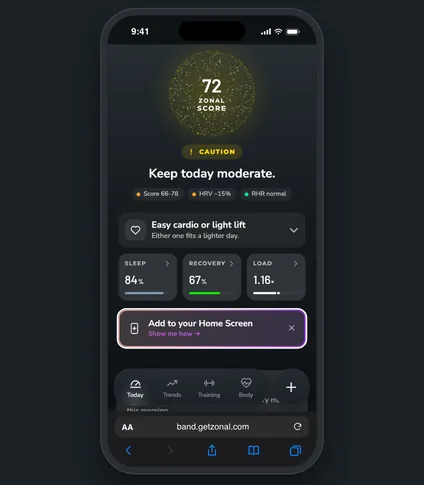
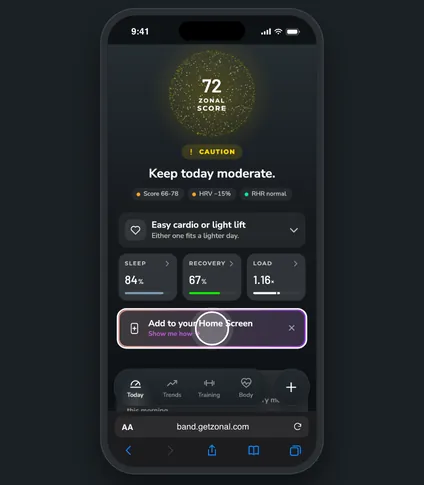
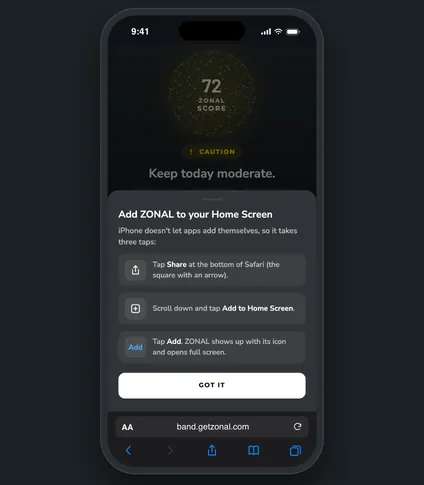
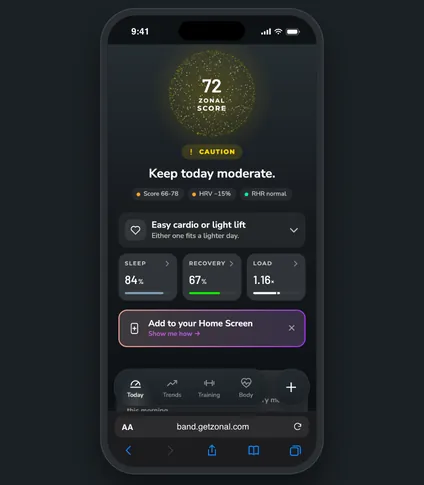
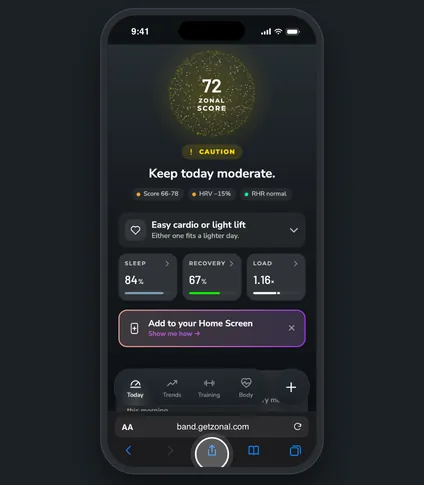
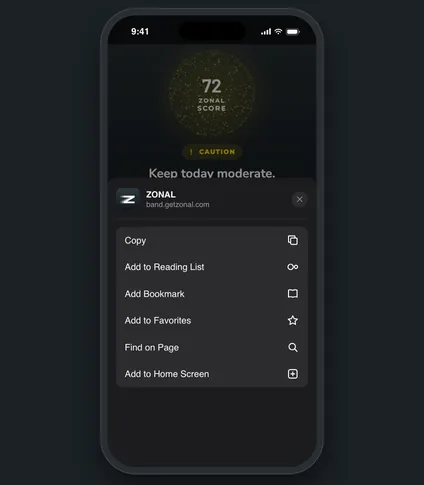
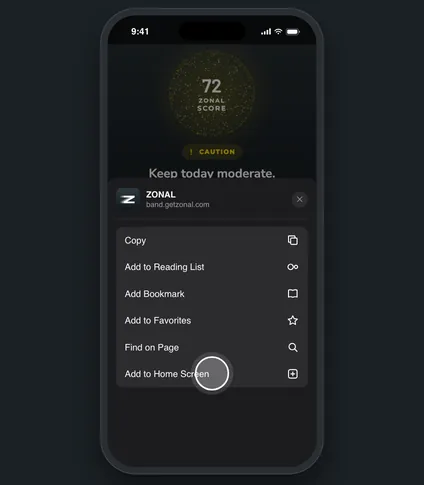
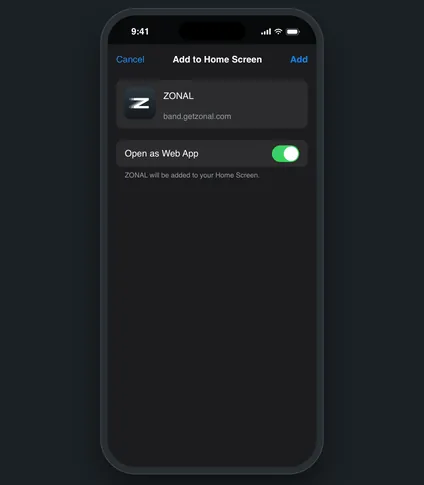
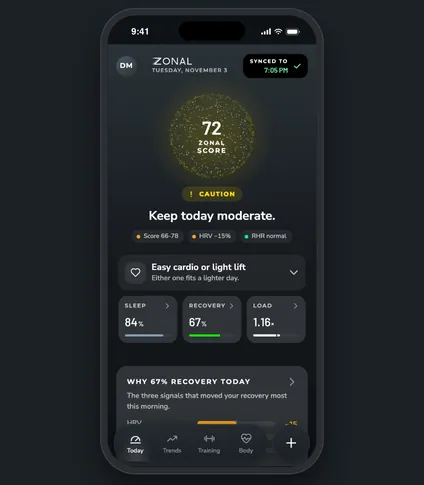
Where to find it
- On Today: the first time you open ZONAL in a browser, an Add to your Home Screen row sits right under the Sleep, Recovery and Load tiles. Tap Show me how.
- In More: tap the round + button, then More. Under Get the app, tap Add to Home Screen.
Both open the same short guide with the steps for your phone. Once ZONAL is running from your Home Screen, neither one shows.
On iPhone
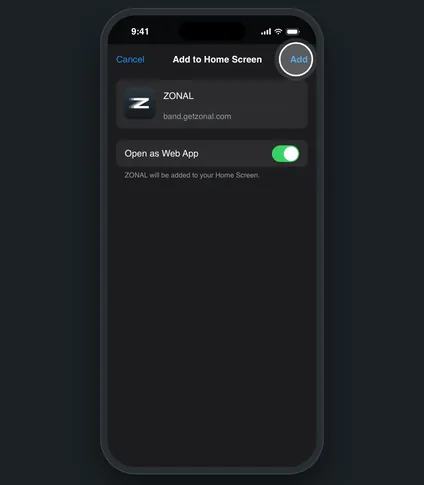
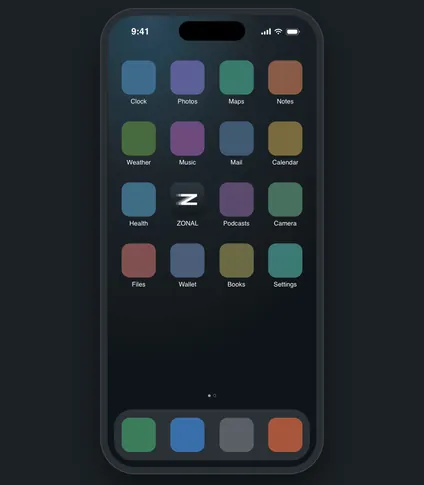
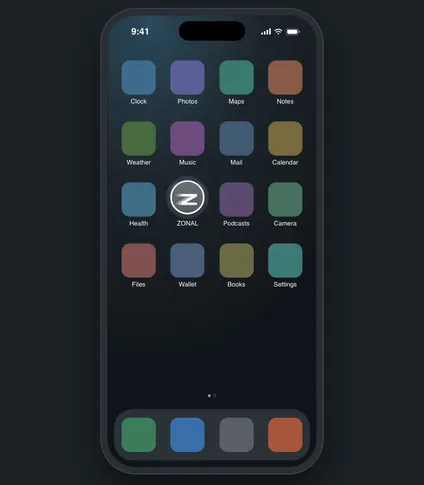
iPhone doesn't let web apps add themselves, so it takes three taps: 1. Tap Share at the bottom of Safari (the square with an arrow). In Chrome, Share is at the top right, next to the address. 2. Scroll down and tap Add to Home Screen. 3. Tap Add. ZONAL shows up with its icon and opens full screen.
On Android
In Chrome, tapping Show me how may bring up the install dialog right away. Accept it and you're done. If it doesn't, open your browser's menu, tap Install app or Add to Home Screen, and confirm.
Good to know. Tapped the ✕ on the Today row? It only hides it for this visit. You can always add ZONAL from More instead.
Questions
Is this a real app from the App Store?
No. ZONAL is a web app. Adding it to your Home Screen gives it an icon and a full-screen window, with nothing to download from a store.
Do I have to sign in again after adding it?
Sign in once from the Home Screen app if it asks. After that it stays signed in for 30 days at a time, like the browser.
I don't see Add to Home Screen in the Share menu.
Scroll further down the Share menu; it's often below the first row of actions. On iPhone, use Safari or Chrome.